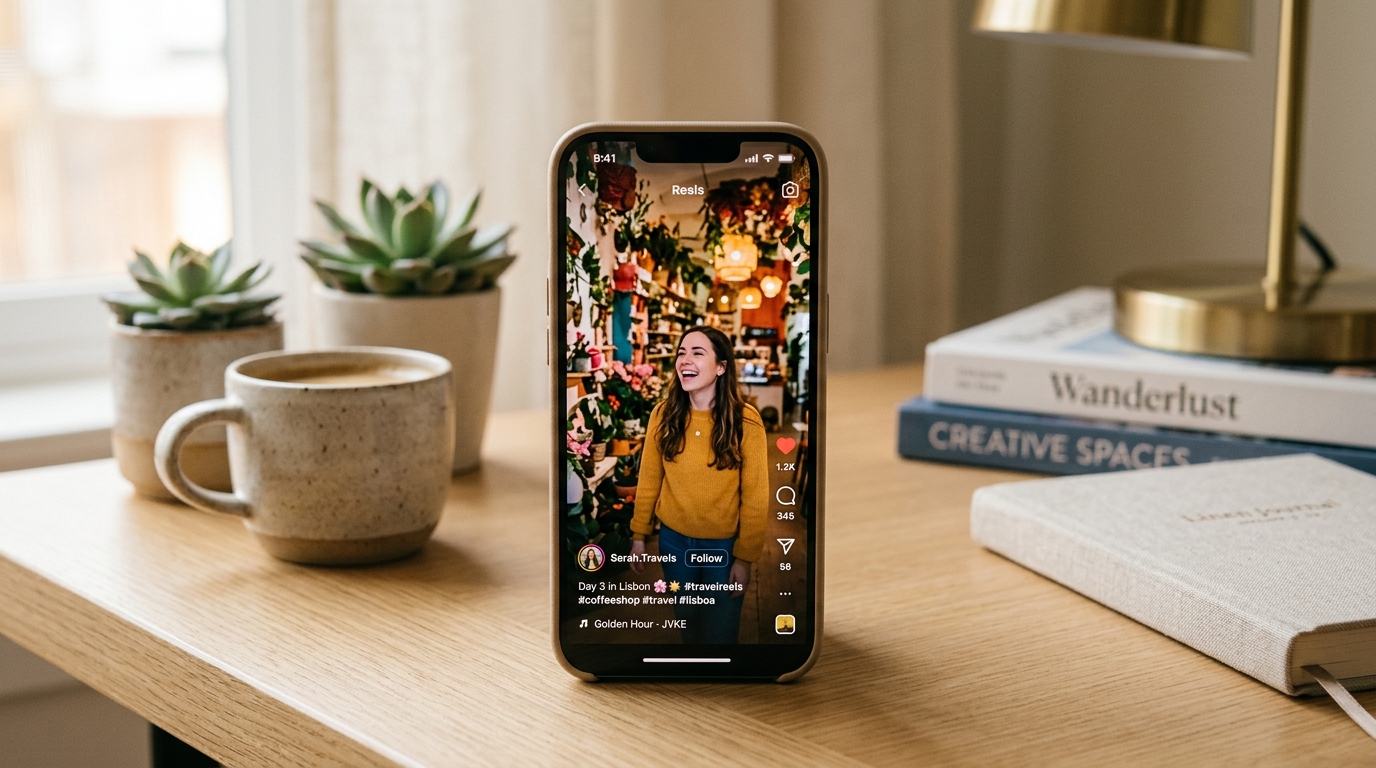
Instagram Reels have become the dominant format for discovering viral clips, tutorials, comedy, and creative cinematography. However, tapping Instagram's native "Save" button merely bookmarks the reel inside the app—it does not save the actual video file to your camera roll or desktop drive. When you do find tools to download them, many produce blurry, 480p videos with distorted audio. In this guide, you will learn how to extract the original 1080p uncompressed stream with full audio clarity.
1. Why Instagram Reels Lose Quality
When creators upload videos, Instagram automatically encodes them into various bitrates and resolutions depending on the viewer's network speed. Standard screen-recording apps re-encode the screen at lower bitrates and capture UI clutter. A specialized downloader like Grabix directly addresses Instagram's CDN (Content Delivery Network) to pull the highest-resolution MP4 container (1080x1920) before client-side downscaling occurs.
2. Step-by-Step: Downloading Reels in Full HD
3. Mobile (iPhone / Android) vs Desktop PC
On iOS (Safari), downloads appear in the Safari Downloads manager (the small arrow in the address bar). You can tap the downloaded file and tap "Save Video" to transfer it to your Apple Photos Camera Roll. On Android and Desktop (Chrome, Edge, Brave), files download straight to your default Downloads folder in standard MP4 format, compatible with any video editor or media player.
4. Pro Tips for the Best Video Resolution
- Ensure the reel is from a public creator profile (private reels cannot be fetched without authentication).
- Avoid taking screen recordings, which introduce jitter, dropped frames, and screen UI elements.
- Save files on a stable Wi-Fi connection to prevent network timeouts when downloading high-bitrate clips.